


Parental Controls & Safe Browsing on the Hitron ARIA 2210
Wi-Fi Pause Schedules, Device Controls & Family-Friendly DNS
The Hitron ARIA 2210 includes several useful tools that can help families manage when devices have Internet access and add an additional layer of protection against unwanted or potentially harmful websites.
This guide covers two different features:
Two Different Tools — One Happier Home Network
Part 1 — Wi-Fi Pause Scheduler
Control when individual devices can access the Internet. Useful for bedtime, homework time, dinner or temporarily pausing a specific device.
Part 2 — Safe Browsing / Family DNS
Change the DNS used by your home network to help block known malware or, optionally, malware and adult-content domains.
Good to Know — These Are Household Controls, Not a Complete Parental-Control System
ARIA controls can be a useful additional layer, but they do not control what someone does inside an individual app or website.
Devices may also have other ways of reaching the Internet, such as cellular data, VPN services or their own DNS settings.
For more comprehensive controls, consider combining the ARIA features in this guide with device-level tools such as Apple Screen Time or Google Family Link.
Part 1 — Wi-Fi Pause Scheduler
The ARIA 2210’s Wi-Fi Pause Scheduler allows you to control Internet access for individual devices connected to your home network.
What Can the Pause Scheduler Do?
You can:
- Pause Internet access immediately for a specific device.
- Create recurring schedules for bedtime, homework, school nights or other routines.
- Block a device from accessing your network.
Choose Device → Create Schedule → ARIA Pauses Internet Automatically
This controls the device’s Internet connection through the ARIA. It does not control individual apps, games or websites on the device.
Step 1 — Sign Into Your ARIA 2210
Open the Router Administration Page
- Connect your phone, tablet or computer to your Wakey Wi-Fi network.
- Open a web browser.
- Enter 192.168.0.1 directly into the address bar.
- Sign in using your ARIA administrator credentials.
Username: cusadmin
Password: The administrator password you created when initially setting up the ARIA 2210.
If you previously changed the ARIA’s local network/IP configuration, your router’s administration address may be different.
Forgot Your Administrator Password?
Your ARIA administrator password was created during initial setup and is not known by Wakey.
If you’ve forgotten it, you’ll need to factory reset the ARIA 2210 and then set it up again.
After a factory reset, wait for the ARIA LED to begin slowly flashing/pulsing white. This indicates that it is ready to be configured again.
Step 2 — Find the Device You Want to Manage
Open Connected Devices
From the ARIA administration interface, navigate to:
Overview → Connected Devices
The ARIA will display devices connected to your network along with information such as:
- Device name
- Connection type
- IP address
- MAC address
- Connection status
Find the phone, tablet, computer, gaming console or other device you want to manage.
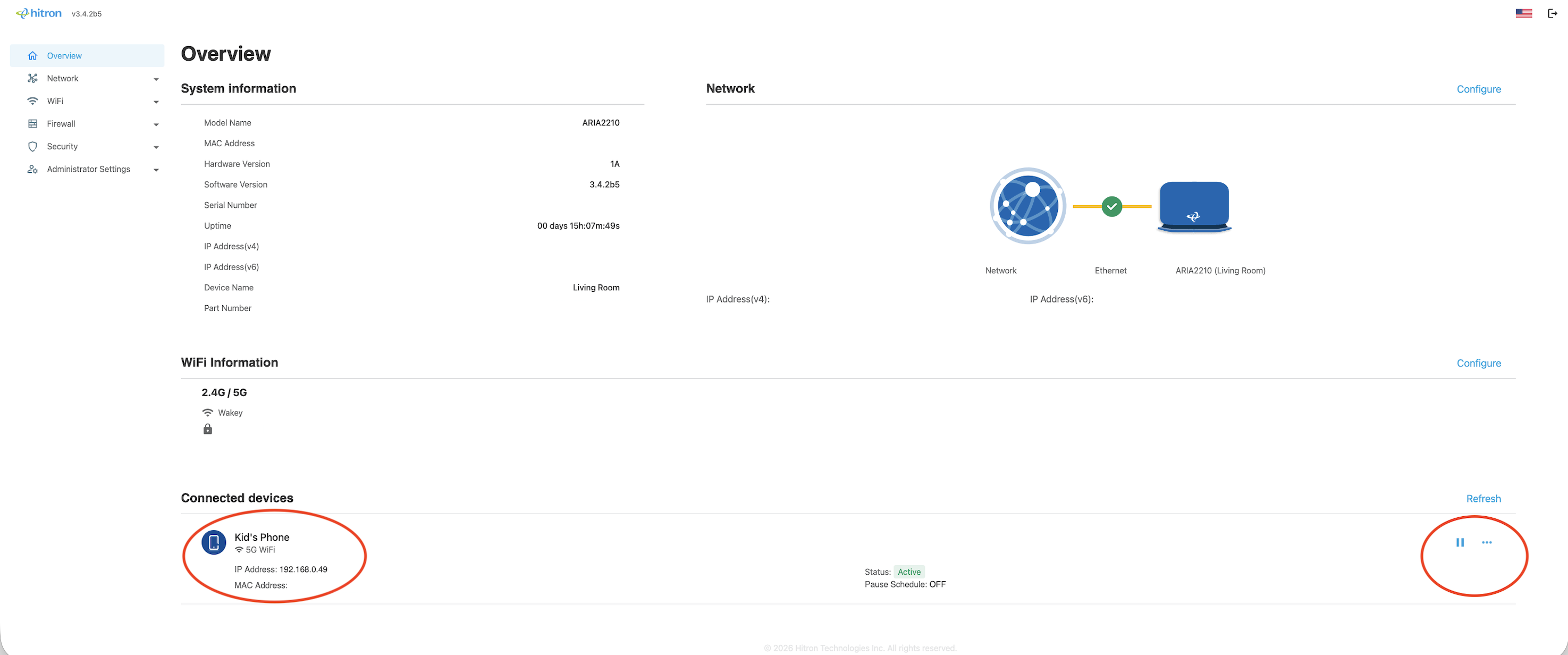
The Connected Devices page includes an options button beside each device.
Step 3 — Open the Device Schedule
Select the Device
- Find the device you want to restrict.
- Select the three-dot options menu beside that device.
- Select Schedule.
The ARIA will open the Manage Pause Schedule page for that specific device.
Step 4 — Create a Pause Schedule
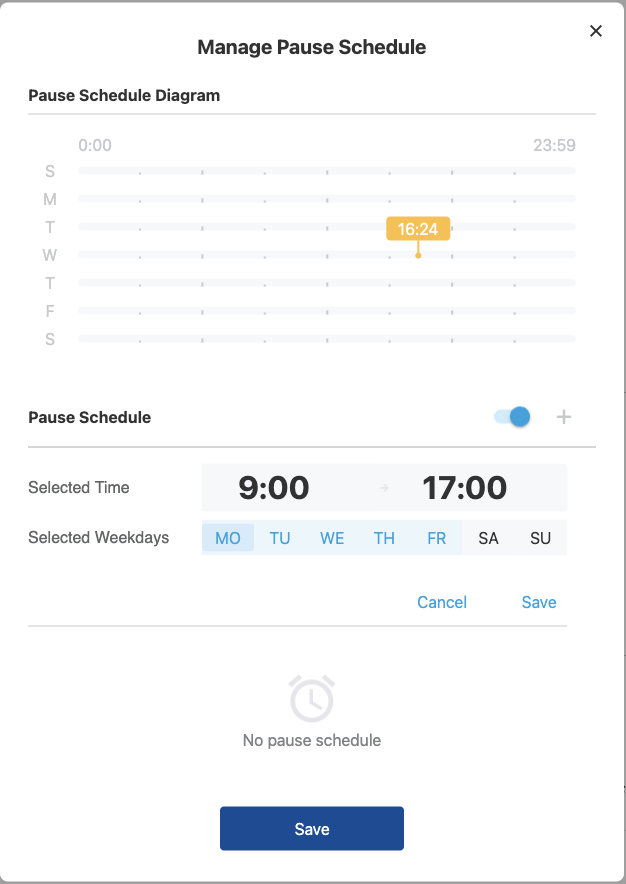
Manage Pause Schedule
From this page you can:
- View the weekly schedule.
- Enable or disable the Pause Schedule.
- Select the + (plus) button to create a new schedule.
Select + to create your first scheduled Internet pause.
Step 5 — Choose When Internet Should Pause
Create a Time Block
Choose:
- Start Time
- End Time
- Days of the Week
Save or apply the schedule when finished.
Example — Homework Time
Monday–Friday | 4:00 PM–6:00 PM
Example — Bedtime
Sunday–Thursday | 9:30 PM–7:00 AM
Step 6 — Turn the Schedule On
Activate Your Schedule
- Return to the Pause Schedule page.
- Turn the Pause Schedule toggle ON.
- Confirm that your schedule appears correctly.
That’s It — The ARIA Will Handle the Rest
During the scheduled period, the selected device will lose Internet access through the ARIA. Access will resume according to the configured schedule.
Need Internet Off Right Now?
Instant Pause
From the Connected Devices menu, you can also temporarily pause a device without creating a recurring schedule.
Useful for things like:
- Dinner time
- Homework
- Taking a break
- Temporarily disconnecting a device
Block a Device
The ARIA can also block a device from accessing your network.
This can be useful for:
- Unknown devices
- Devices you no longer recognize or trust
- Devices you no longer want connected to your home network
Before blocking an unfamiliar device, double-check that it isn’t one of your own smart-home devices, televisions, speakers or other equipment using an unfamiliar device name.
Part 2 — Safe Browsing & Family DNS
What Is DNS?
DNS, or Domain Name System, helps your devices translate website names into the Internet addresses needed to reach them.
Think of DNS Like an Internet Address Book
Website Name → DNS → Internet Address
Some DNS providers can also refuse to resolve domains known to host certain types of unwanted content.
By changing the DNS settings on your ARIA, you can apply a DNS service across devices using your router’s DNS configuration.
DNS Filtering Has Limits
DNS filtering generally works at the domain level. It does not inspect or understand every individual page, video, message or piece of content inside an allowed website or app.
For example, a family DNS service may block an adult-content website while still allowing a general-purpose platform that contains a mixture of appropriate and inappropriate user-generated content.
Cloudflare DNS Options
Cloudflare provides several DNS options depending on the type of filtering you want.
Option A — Standard Cloudflare DNS
For general DNS service without malware or adult-content filtering:
Primary DNS: 1.1.1.1
Secondary DNS: 1.0.0.1
Best for: General browsing where content filtering is not required.
Option B — Malware Blocking
For DNS filtering designed to block known malware-related domains:
Primary DNS: 1.1.1.2
Secondary DNS: 1.0.0.2
Best for: Adding an additional DNS-based security layer without enabling adult-content filtering.
Option C — Family DNS
For DNS filtering designed to block malware and adult-content domains:
Primary DNS: 1.1.1.3
Secondary DNS: 1.0.0.3
Best for: Households looking for an additional family-oriented browsing filter.
Remember: this is domain-level filtering. It does not guarantee that every piece of inappropriate content inside an otherwise permitted app or website will be blocked.
How to Change DNS on the ARIA 2210
Change Your WAN DNS
- Sign into the ARIA administration page at 192.168.0.1.
- Navigate to Network → WAN → DNS Settings.
- Locate the Primary DNS and Secondary DNS fields.
- Enter the DNS pair you want to use.
- Select Save / Apply.
For example, to use Cloudflare Family DNS:
Primary DNS: 1.1.1.3
Secondary DNS: 1.0.0.3
After applying the change, reconnecting your devices to Wi-Fi or restarting the router may help devices begin using the updated configuration.
Important — Do Not Change Other WAN Settings
When following this guide, only change the Primary DNS and Secondary DNS fields.
Do not change settings such as:
- Static or manual IP configuration
- Gateway
- Subnet mask
- WAN mode or connection type
- VLAN settings
- PPPoE settings
- Other advanced WAN options
Changing unrelated WAN settings can cause your Internet connection to stop working. If you’re unsure about a field, leave it exactly as it is.
Understanding the Limitations
Router-level controls work well as one layer of a household Internet setup, but they are not the only way a device can communicate with the Internet.
VPNs & Alternative DNS
Some VPNs, browsers, apps or operating systems can use their own DNS or encrypted DNS services rather than relying entirely on the DNS supplied by your router.
This can reduce the effectiveness of router-level DNS filtering.
For supervised devices, consider combining ARIA filtering with Apple Screen Time, Google Family Link or other device-level parental controls.
Phones & Tablets With Cellular Data
The ARIA can control traffic passing through your home Internet connection.
If a phone or tablet disconnects from Wi-Fi and switches to LTE or 5G, its Internet traffic is no longer passing through your ARIA.
Device-level parental controls may therefore be useful alongside the ARIA for devices with cellular service.
Private / Randomized Wi-Fi Addresses
The ARIA identifies connected devices using information that includes their MAC address.
Modern phones and tablets may use privacy features that provide a private or randomized MAC address to Wi-Fi networks.
If a device begins appearing to the ARIA under a different address, a schedule assigned to the previous device entry may no longer apply to the new entry.
If a Pause Schedule unexpectedly stops applying, check the ARIA’s Connected Devices page and make sure you’re managing the correct device entry.
Apple Devices
Apple devices include a Private Wi-Fi Address feature. Depending on the software version, the available privacy/address options may vary.
If you’re having trouble keeping a device consistently associated with an ARIA schedule, review the Wi-Fi privacy settings for your Wakey Wi-Fi network and make sure the device continues to appear consistently in the ARIA’s Connected Devices list.
Android Devices
Android devices may also use a Randomized MAC or similar privacy feature. The exact setting and wording varies by device manufacturer and Android version.
If your scheduled device begins appearing as a different device in the ARIA, review that device’s Wi-Fi privacy/MAC settings and make sure you’re applying the schedule to the correct Connected Devices entry.
A Stronger Family Setup
Layer Your Controls
For households looking for additional control, these features can work together:
Wi-Fi Pause Scheduler — Controls when selected devices have Internet access through the ARIA.
Family DNS (1.1.1.3 / 1.0.0.3) — Adds domain-level malware and adult-content filtering.
Device-Level Parental Controls — Apple Screen Time, Google Family Link or similar tools can provide additional controls directly on supervised devices.
Router Controls + DNS Filtering + Device Controls = More Complete Coverage
