


How to Use WPS on the Hitron ARIA 2210
Connect Compatible Wi-Fi Devices Without Entering Your Wi-Fi Password
The WPS (Wi-Fi Protected Setup) feature on the Hitron ARIA 2210 can be used to connect compatible devices such as printers, cameras, smart-home equipment and other wireless devices without manually entering your Wi-Fi password.
Follow the steps below to enable WPS, start a pairing session and connect your device.
Before You Begin
Make sure:
- Your Hitron ARIA 2210 is powered on, configured and online.
- Your phone, tablet or computer is connected to the ARIA by Wi-Fi or Ethernet.
- You have your ARIA 2210 administrator password.
- The device you want to connect supports WPS.
The default ARIA administrator username is cusadmin. Your administrator password is the password you created when you originally configured your ARIA 2210.
What Are We Going to Do?
Log Into ARIA → Enable WPS → Press to Pair → Connect Device
The WPS pairing window is temporary, so have the device you want to connect nearby and ready before starting the pairing session.
Step 1 — Access Your ARIA 2210
Start from a phone, tablet or computer that is already connected to your ARIA 2210 network.
Open the Router Administration Page
1 — Open Your Browser
Open Safari, Chrome, Edge, Firefox or another web browser.
2 — Visit the ARIA
Enter the following address directly into your browser’s address bar:
192.168.0.1
If your browser asks for permission to access devices on your Local Network, select Allow.
3 — Sign In
Username: cusadmin
Password: The administrator password you created when you initially configured the ARIA 2210.

Which Password Is This?
This is your router administrator password, not necessarily your Wi-Fi password.
The administrator password was created during the initial ARIA 2210 setup process and is used to manage your router’s settings.
Step 2 — Open the WPS Settings
Find WPS
Once you’ve signed into the ARIA:
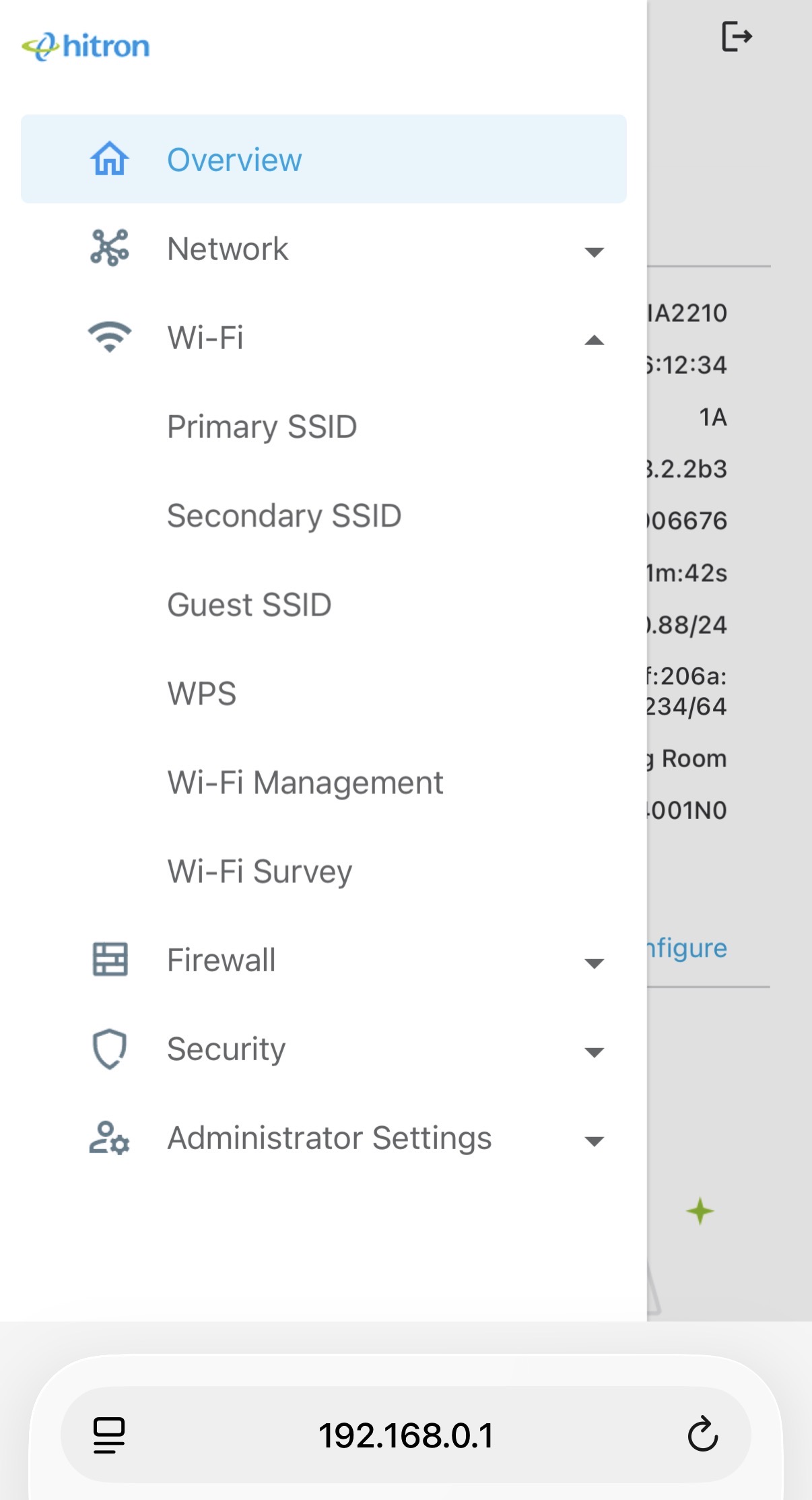
- Open the main menu. On smaller screens, you may need to select the menu button.
- Select Wi-Fi to expand the Wi-Fi settings.
- Select WPS.
Wi-Fi → WPS
You should now see the ARIA’s WPS configuration screen.
Step 3 — Enable WPS
Turn On WPS
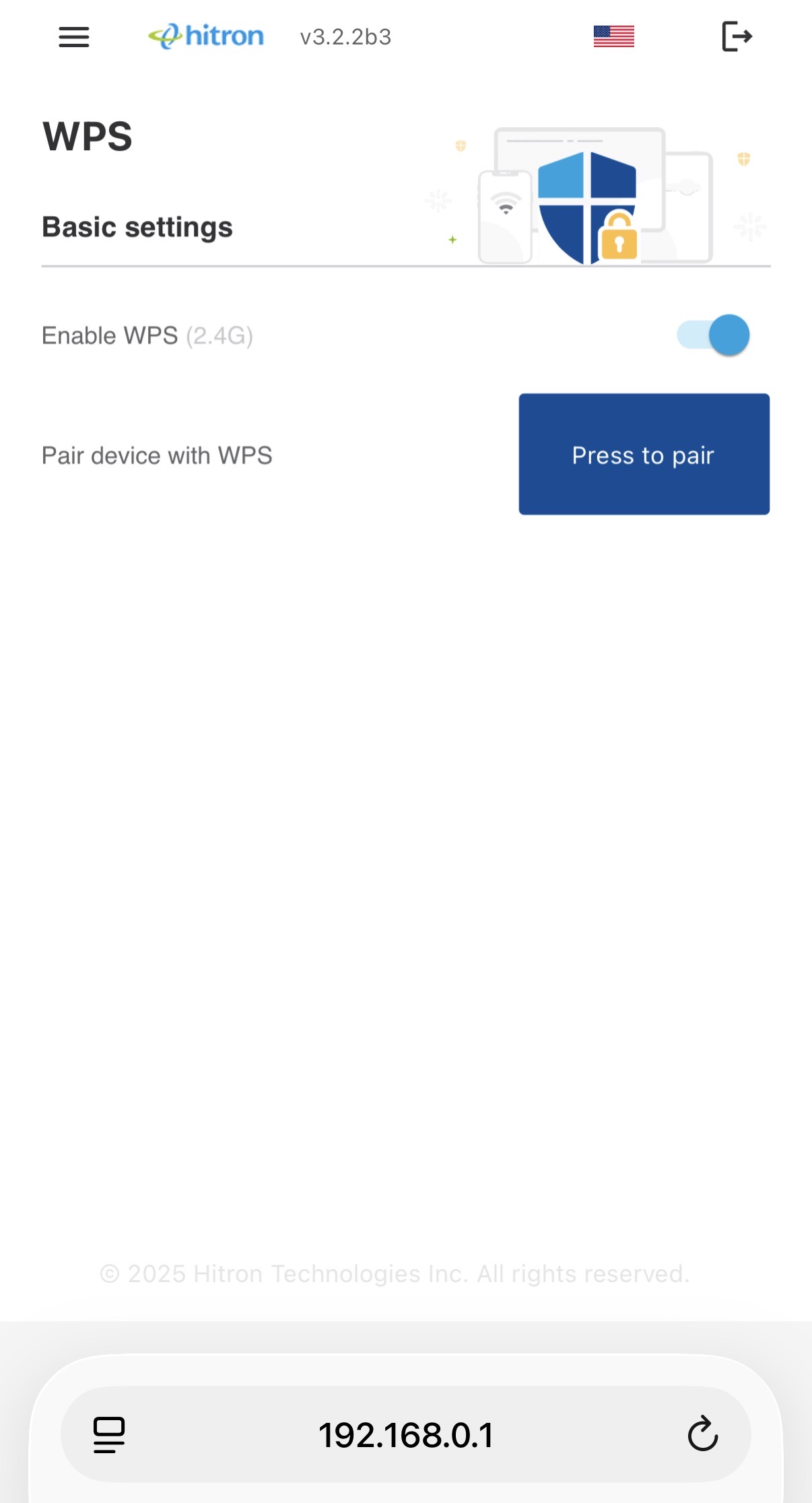
On the WPS page, locate:
Enable WPS (2.4G)
- Move the Enable WPS (2.4G) toggle to the ON position.
- The toggle should appear blue when enabled.
- WPS is now enabled for the ARIA’s 2.4 GHz Wi-Fi network.
You can now continue to the pairing step.
Asked to Restart the ARIA?
Depending on the router’s configuration, you may be asked to restart after enabling WPS.
If a restart is required, allow the ARIA to completely come back online. Then sign back into 192.168.0.1 and return to Wi-Fi → WPS before continuing.
Step 4 — Start WPS Pairing
Now you’re ready to connect your wireless device.
Press to Pair
1 — Start Pairing on the ARIA
On the WPS page, select the large:
Press to pair
2 — Start WPS on Your Device
Within approximately 2 minutes, go to the device you want to connect.
Depending on the device, either:
- Press its physical WPS button, or
- Select WPS from the device’s Wi-Fi/network settings.
3 — Wait for the Connection
Wait for the device to confirm that it has connected. Depending on the device, you may see a solid Wi-Fi light, a connected indicator or a Connected message.
Connected!
Your device should now be connected to your Wakey Wi-Fi network without manually entering the Wi-Fi password.
ARIA → WPS Pairing → Your Device
Your Device May Tell You to Start WPS First
Some printers, cameras and other devices provide their own WPS instructions. If your device tells you to begin WPS on the device before selecting Press to pair on the ARIA, follow the device manufacturer’s instructions.
Step 5 — Turn WPS Back Off
Once your device is connected, Wakey recommends disabling WPS again when you no longer need it.
Disable WPS When You’re Finished
- Return to 192.168.0.1.
- Sign into the ARIA if necessary.
- Navigate to Wi-Fi → WPS.
- Turn Enable WPS (2.4G) OFF.
Turning WPS off will not disconnect the device you just paired. It simply prevents another WPS pairing session from being started until you enable the feature again.
Why Turn WPS Off Again?
WPS is convenient when connecting compatible devices, but if you don’t regularly use it, leaving it disabled when you’re finished reduces unnecessary pairing functionality on your Wi-Fi network.
WPS Pairing Didn’t Work?
Try the Pairing Process Again
WPS pairing only remains active for a limited period.
If pairing fails:
- Make sure Enable WPS (2.4G) is still turned on.
- Make sure your device supports WPS.
- Move the device closer to the ARIA temporarily.
- Select Press to pair again.
- Activate WPS on your device within approximately 2 minutes.
- Wait for the device to confirm the connection.
If necessary, check the instructions supplied by the manufacturer of the device you’re trying to connect, as the exact WPS procedure can vary.
Remember — WPS Is 2.4 GHz on the ARIA
The WPS option shown on the ARIA 2210 is labelled Enable WPS (2.4G). The device you’re connecting should therefore support the ARIA’s 2.4 GHz Wi-Fi network.
Forgot Your ARIA Administrator Password?
Wakey Doesn’t Know Your Administrator Password
Your ARIA administrator password was created by you during the initial router setup. Wakey does not have access to that password.
If you’ve forgotten it, the ARIA will need to be returned to its factory settings and configured again.
Important: A factory reset erases the ARIA’s current configuration, including your customized settings.
Factory Reset the ARIA 2210
- Keep the ARIA connected to power.
- Locate the recessed RESET button on the unit.
- Using a paper clip or pin, press and hold RESET for approximately 15 seconds.
- Release the button and allow the ARIA to power-cycle and restart.
- Wait for the LED to begin slowly flashing/pulsing white.
Slow flashing white = ready to configure. Once you see the flashing white light, you can set up the ARIA again using its temporary EasyConnect network.
After the reset, follow the Hitron ARIA 2210 Setup Guide to configure the router again.
