


Technicolor CGA4234DGW Wi-Fi Modem Guide
The Technicolor CGA4234DGW is a DOCSIS 3.1 cable modem with built-in dual-band Wi-Fi, designed to provide fast, reliable Internet throughout your home.
Whether you’re connecting for the first time, changing your Wi-Fi password, or using your own router, this guide will walk you through everything you need to know.
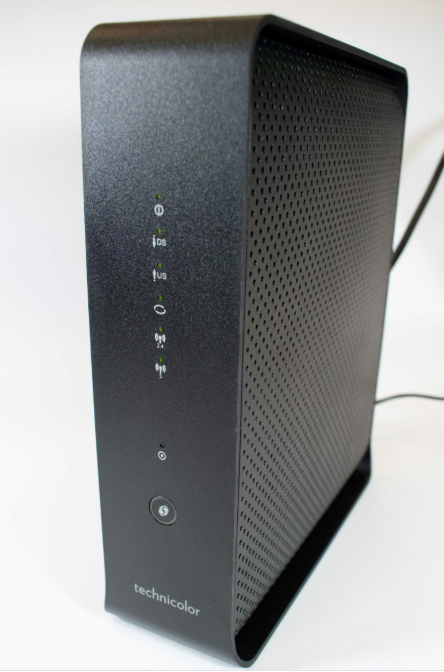
Getting Connected
Your modem is ready to use out of the box.
Simply:
- Connect the coaxial cable to the modem.
- Connect the power adapter.
- Wait approximately 5–10 minutes for the modem to come online.
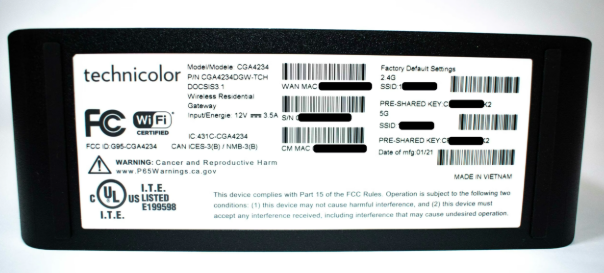
- Connect to the default Wi-Fi network using the information printed on the side label.
The default Wi-Fi network name (SSID) and password are unique to your modem.
Default Modem Login
If you’d like to manage your modem settings:
Router Mode (Default)
http://192.168.0.1
Bridge Mode
http://192.168.100.1
Default Username:
(Leave blank)
Default Password:
(Leave blank)
Changing Your Wi-Fi Name & Password
- Open a web browser.
- Visit http://192.168.0.1
- Leave both Username and Password blank.
- Select Wireless.
- Choose Radio.
- Under 2.4 GHz Wireless Network, enter your desired Wi-Fi name.
- Under 5 GHz Wireless Network, enter your desired Wi-Fi name.
- Click Save.
- Select Security.
- Enter your desired Wi-Fi password for both the 2.4 GHz and 5 GHz networks.
- Click Save.
Your wireless devices will reconnect using the new credentials.
Using Your Own Wi-Fi Router
If you’d prefer to use your own router or mesh Wi-Fi system (such as TP-Link Deco, ASUS, Ubiquiti, or Eero), the Technicolor modem can be placed into Bridge Mode.
To enable Bridge Mode:
- Disconnect all Ethernet devices.
- Connect your router to LAN Port 1.
- Open http://192.168.0.1
- Select Connection
- Select WAN
- Change Working Mode to Bridged Only
- Click Save
Once Bridge Mode is enabled, your own router will manage your home network.
Factory Reset
To restore factory settings:
- Ensure the modem is powered on.
- Press and hold the RESET button on the rear of the modem for at least 5 seconds.
- Release the button.
- Allow several minutes for the modem to reboot.
Your Wi-Fi name and password will return to the factory defaults printed on the modem label.
VPN Support
The Technicolor CGA4234DGW supports VPN passthrough.
To enable:
- Log into http://192.168.0.1
- Select Security
- Select Firewall
- Scroll to Advanced Settings
- Enable:
- IPSec Passthrough
- PPTP Passthrough
- Click Save
Technical Specifications
- DOCSIS 3.1 (2×2)
- DOCSIS 3.0 (32×8)
- Broadcom BCM3384 chipset
- Four Gigabit Ethernet ports
- Dual-band Wi-Fi
- 2.4 GHz 802.11n
- 5 GHz 802.11ac
- Power Supply
- 12V DC
- 3.5A
