

Hitron CODA-56 Cable Modem Guide
Setup, Light Patterns, Multi-Gig Ethernet & Troubleshooting
The Hitron CODA-56 is a DOCSIS 3.1 cable modem approved for use on the Wakey cable network within the Rogers/Shaw footprint. This guide covers physical setup, modem light patterns, multi-gig Ethernet, reset instructions and common troubleshooting.
Important — This Modem Does Not Provide Wi-Fi
The CODA-56 is a standalone cable modem. It does not contain a Wi-Fi router.
To connect wireless devices, connect your Wakey-provided Wi-Fi router/mesh system or your own compatible router to the CODA-56’s Ethernet port.
In This Guide
Quick Specs
Hitron CODA-56
- Type: Standalone DOCSIS 3.1 cable modem
- Wi-Fi: None — a separate router or Wi-Fi system is required
- Ethernet: 1 × 2.5 Gigabit Ethernet (2.5GbE)
- DOCSIS: DOCSIS 3.1 with OFDM/OFDMA support and DOCSIS 3.0 fallback
Its 2.5GbE Ethernet interface makes the CODA-56 suitable for Internet plans and home networks capable of exceeding standard Gigabit Ethernet speeds.
How to Connect Your CODA-56
Setup is simple: coax in, Ethernet out.
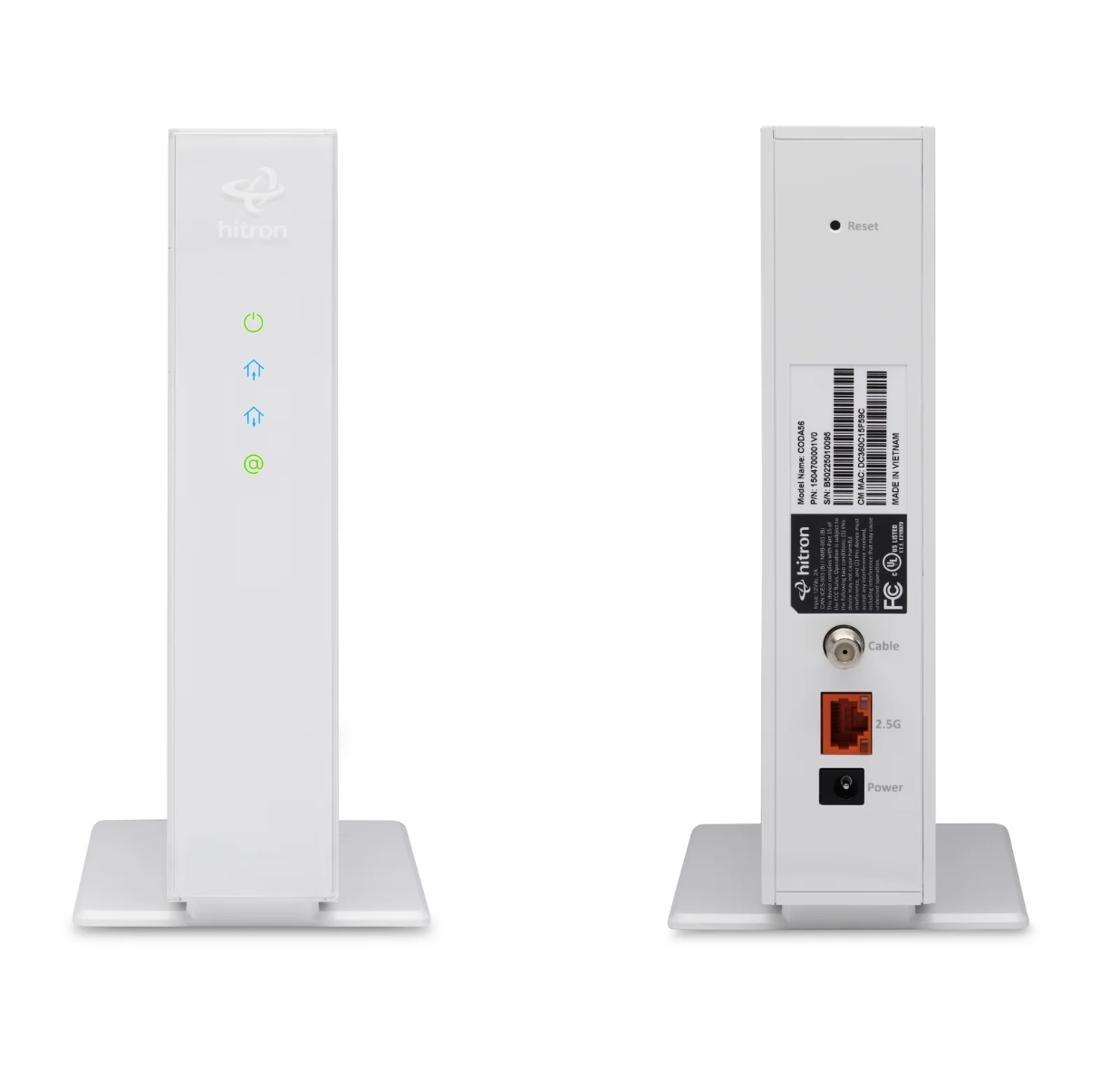
- Connect the coax cable from your wall coax outlet to the Cable/Coax connector on the CODA-56.
- Connect the modem’s power adapter.
- Allow approximately 2–10 minutes for the modem to boot and establish its connection.
- Connect an Ethernet cable from the CODA-56 Ethernet port to the WAN/Internet port on your router.
- Allow your router a few minutes to obtain an Internet connection.
Connection Map
Coax Outlet → CODA-56 → Ethernet → Router WAN → Your Devices
Using a Multi-Gig Internet Plan?
The CODA-56 includes a 2.5GbE Ethernet port.
If your router also supports a 2.5GbE WAN connection, connect the CODA-56 to that port to avoid limiting the modem-to-router connection to standard Gigabit Ethernet.
CODA-56 LED Light Patterns
Normal DOCSIS 3.1 Operating State
Power Solid Green • DS Solid Blue • US Solid Blue • Online Solid Green
Ethernet activity may blink as data passes between the modem and your router.
| LED | Status | What It Means |
|---|---|---|
| POWER | Solid Green | The modem is receiving power. |
| POWER | Off | The modem is not receiving power. |
| DS | Blinking Green | Searching for a downstream frequency. |
| DS | Solid Green | A downstream frequency has been located and locked. |
| DS | Solid Blue | The modem is successfully engaged in downstream channel bonding. |
| DS | Off | No downstream activity is present. |
| US | Blinking Green | Searching for an upstream frequency. |
| US | Solid Green | An upstream frequency has been located and locked. |
| US | Solid Blue | The modem is successfully engaged in upstream channel bonding. |
| US | Off | No upstream activity is present. |
| ONLINE | Blinking Green | The modem is registering with the cable network. |
| ONLINE | Solid Green | The modem has successfully registered and is ready for data transfer. |
| ONLINE | Off | The modem is offline. |
What Do the Blue DS & US Lights Mean?
On the CODA-56, blue DS and US indicators are a normal operating state and indicate channel bonding.
If DS is solid blue, US is solid blue and Online is solid green, your modem has successfully established its cable connection.
Understanding the CODA-56’s 2.5GbE Port
The CODA-56 includes a 2.5 Gigabit Ethernet port, allowing the connection between your modem and compatible router to operate above 1 Gbps.
If Your Router Only Has a 1 Gigabit WAN Port
The Ethernet connection between the CODA-56 and router will be limited by the router’s 1 Gigabit interface.
A 1 Gigabit Ethernet connection will generally test below the full 1,000 Mbps line rate because of networking overhead.
Want Speeds Above 1 Gbps?
Your network needs to support multi-gig speeds throughout the relevant connection path.
- Internet Plan: Must support speeds above 1 Gbps
- CODA-56: 2.5GbE supported
- Router WAN: Must support 2.5GbE or faster
- Ethernet Cabling: Cat5e or better recommended
- Testing Device: Must support speeds above 1 Gbps if testing by Ethernet
Wi-Fi is separate. Wireless performance depends on your router, Wi-Fi standard, client device, distance, interference, channel conditions and other environmental factors. A Wi-Fi 6E or Wi-Fi 7 router can provide greater wireless capabilities, but the Wi-Fi generation alone does not guarantee a particular speed.
Restarting or Resetting the CODA-56
A restart and a factory reset are different. For most connection problems, start with a normal power cycle.
Option 1 — Power Cycle
Recommended first step for most issues.
- Unplug the CODA-56’s power cable.
- Wait approximately 30 seconds.
- Reconnect power.
- Allow approximately 3–5 minutes for the modem to reconnect.
Useful for:
- No Internet connection
- Intermittent connectivity
- Slow or unusual performance
- After changing or replacing your router
A power cycle does not erase the modem’s configuration.
Option 2 — Factory Reset
A factory reset should generally be treated as a last resort.
- Leave the modem powered on.
- Locate the recessed RESET hole.
- Using a paper clip or pin, press and hold RESET for approximately 10–15 seconds, until the lights turn off or begin changing/flashing.
- Release the button.
- Allow the modem to completely reboot and reconnect.
A factory reset clears modem settings and the event log and may require additional activation or provisioning depending on the situation.
We recommend performing a factory reset only when instructed by the Wakey Crew.
Common CODA-56 Issues & Fixes
1. Online Light Keeps Blinking
A continuously blinking Online light means the modem has not completed registration with the cable network.
Try This First
- Make sure the coax cable is securely hand-tightened.
- Do not overtighten the coax connector.
- Power-cycle the modem for approximately 30 seconds.
- Allow the modem several minutes to reconnect.
- If available, test another known-working coax cable.
- If you have another active coax outlet, test it if appropriate.
If the Online indicator still does not become solid after approximately 10–15 minutes, contact Wakey so we can check provisioning and cable signal conditions.
2. DS or US Keeps Flashing
If the CODA-56 remains stuck searching for downstream or upstream connectivity, it has not completed that portion of its cable connection.
Check:
- The coax cable is connected securely at the modem and wall outlet.
- There are no loose or visibly damaged coax connectors.
- Unnecessary splitters or coax adapters have been removed where possible.
- The modem has been allowed enough time to reconnect after a restart.
If DS or US continues flashing and the modem never reaches its normal online state, contact the Wakey Crew.
3. Internet Works, But Keeps Dropping
Intermittent connectivity can have several causes, including cable signal instability, coax problems, router/Wi-Fi issues or other network conditions.
Start with the basics:
- Make sure coax connections are secure.
- Remove unnecessary coax extensions or adapters where possible.
- Check for damaged or corroded coax connectors.
- Avoid unnecessary splitters where possible.
- Power-cycle both your modem and router.
- Determine whether the issue affects Wi-Fi only or wired Ethernet devices as well.
Wi-Fi or Internet?
If your wired Ethernet connection remains stable while Wi-Fi devices disconnect, the modem and cable connection may be working normally and the issue may instead be related to your router or wireless environment.
4. Speeds Are Lower Than Expected
Before assuming there is a cable signal problem, determine whether you’re testing the Internet connection or your Wi-Fi connection.
For the most useful speed test:
- Use a computer connected to your router by Ethernet.
- Temporarily disable VPN software.
- Pause large downloads, cloud backups and streaming on other devices.
- Confirm your computer, Ethernet adapter and router ports support the speed you’re testing.
- Restart the modem and router if necessary.
Testing Over Wi-Fi?
Wireless speeds can vary based on distance, interference, router placement, Wi-Fi generation, device capability and your home’s construction.
For more help, check out our Wi-Fi Best Practices Guide.
5. Modem Is Online, But My Router Has No Internet
If the CODA-56 shows a solid green Online light but your router does not have Internet access:
- Make sure Ethernet runs from the CODA-56 to your router’s WAN/Internet port.
- Power off both the modem and router.
- Wait approximately 30 seconds.
- Power on the CODA-56 first.
- Wait until DS and US have locked and the Online light is solid green.
- Power on the router second.
- Allow the router a few minutes to obtain connectivity.
This clean startup sequence can be particularly useful after replacing or changing routers.
When to Contact the Wakey Crew
Give Us a Shout If:
- The Online light does not become solid green after approximately 10–15 minutes.
- DS or US continues flashing and never locks.
- Intermittent disconnections continue after a clean power cycle.
- You’ve ruled out Wi-Fi as the cause of a speed or stability problem.
- You need help activating or replacing a modem.
- There appears to be a cable signal or provisioning issue.
If possible, let us know:
- Whether DS is flashing, solid green or solid blue
- Whether US is flashing, solid green or solid blue
- Whether Online is flashing, solid green or off
- Whether the issue affects Ethernet, Wi-Fi or both
- Whether you’ve already power-cycled the modem and router
- Your wired speed-test result, if applicable
Reach the Wakey Crew through Live Chat, SMS or Email and we’ll take it from there.
